Introduction:
HDMI (High-Definition Multimedia Interface) can be viewed as a digital upgrade of VGA standard. It supports high resolution displays as well as audio data embedded along with video. The pixel data is serially transferred at ten times of pixel clock frequency using TMDS (Transition Minimized Differential Signalling) to minimize the transitions between 1s and 0s. This article actually demonstrates DVI-D output using Styx AMD Zynq FPGA Module. DVI-D is a subset of HDMI and has same electrical and physical layer implementation as HDMI. So, all HDMI monitors should be capable of receiving the DVI-D signals transported over HDMI cable.
Prerequisites:
Hardware:
- Styx Zynq 7020 FPGA Module
- Saturn IO Breakout Module
- HDMI Expansion Module
- AMD Platform Cable USB II
- HDMI cable and a compatible monitor
Software:
- Vivado (version 2025.1)
Step 1:
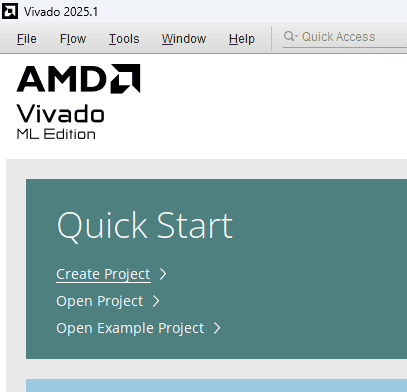
Start Vivado Design Suite, and select “Create New Project” from Quick Start section. The project wizard will pop up. Press next to proceed with creating the project.
Step 2:
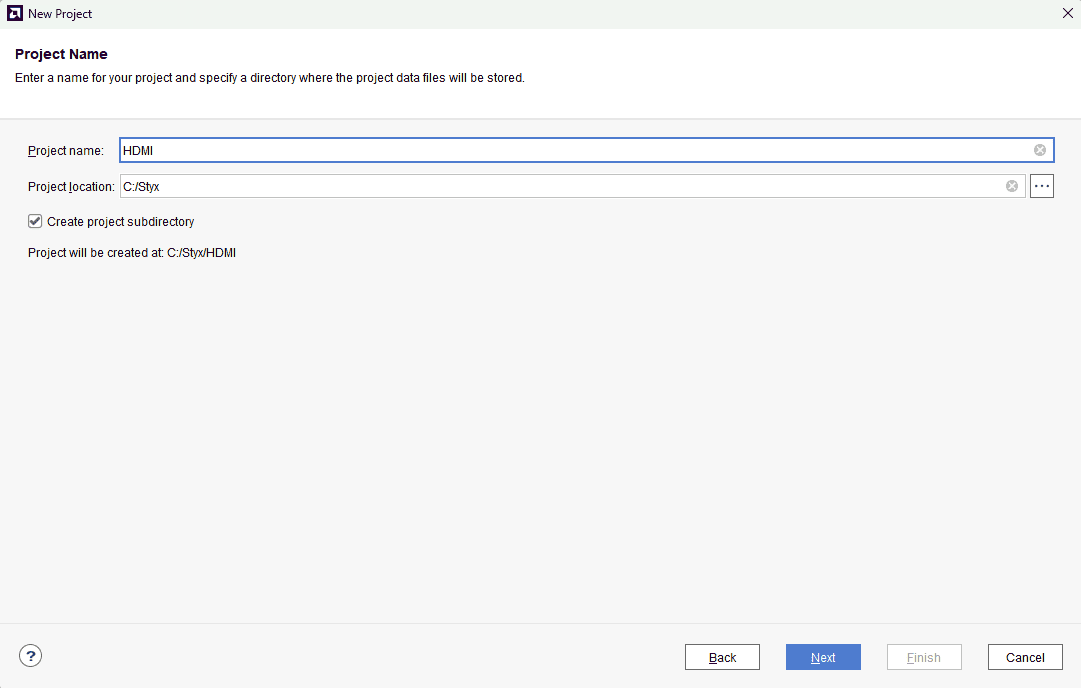
Type in a project name and save it at a convenient location. For this example “HDMI” is used as project name, but feel free to use any name. Select the check box below to keep all project files in a single folder. The image below shows the settings for the example project. Click “Next” to continue.
Step 3:
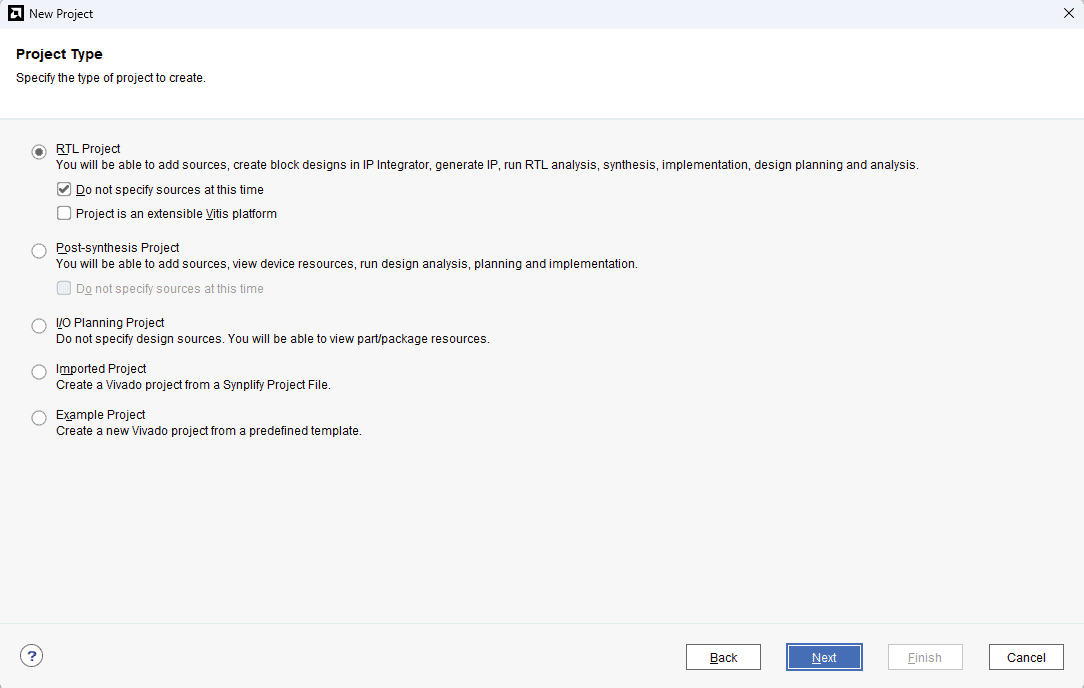
Choose “RTL Project” as project type and check the option “Do not specify sources at this time”.
Step 4:
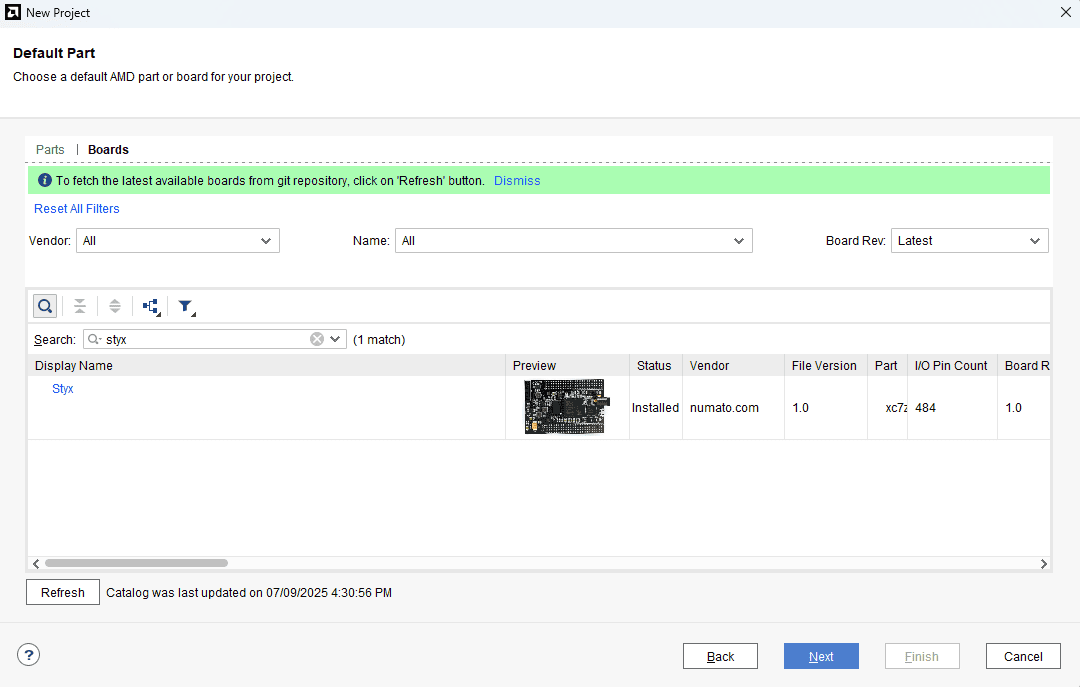
At the “Default Part” stage, switch to the “Boards” tab and set the vendor to numato.com. Select “Styx” and click Next.If the Styx board does not appear in the list, click “Refresh” to update the board catalog. Vivado will then download the latest board files, after which Styx will become available for selection.
Step 5:
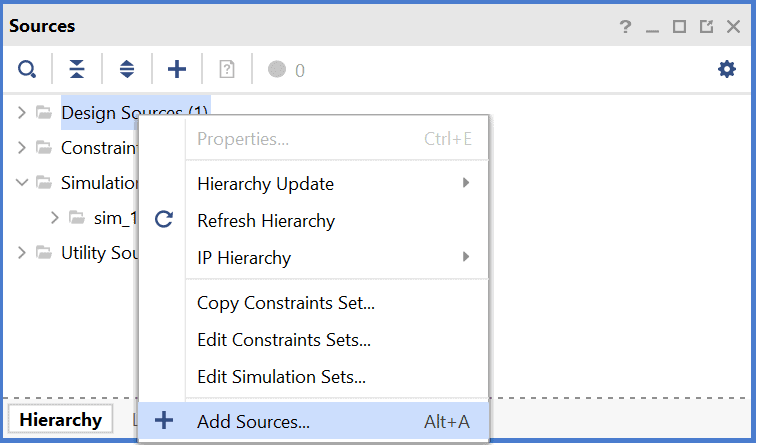
Right-Click on ‘Design Sources’ and select ‘Add Sources’. It will open a configuration window for adding Verilog files.
Step 6:
Download and extract the RTL source files from here and add them to the project by selecting ‘Add Files’.
The HDMI interface has 3 pairs of differential data signals and 1 pair of differential clock signals:
data_p[2:0] & data_n[2:0]: These are HDMI/DVI differential signals carrying the video data to be displayed on screen.clk_p & clk_n: HDMI pixel clock differential pair of signals.
First, VGA signals are generated inside vga module. Then the VGA signals are encoded to 10-bits per channel and the data is then serialised to 10x of pixel clock rate. Finally the three channels along with pixel clock are driven out using TMDS differential drivers.
In the top module (dvid_test), the two submodules dvid and vga are instantiated. Clocking IP (clocking wizard) is used to generate clocks for VGA and DVI-D.
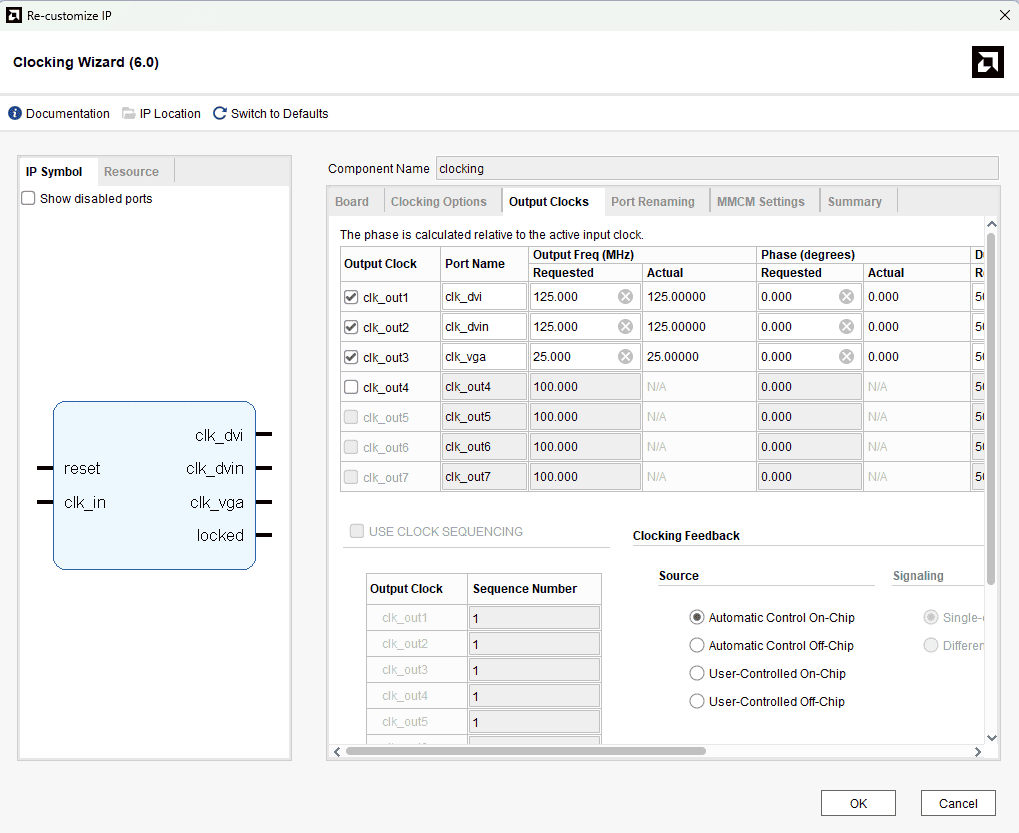
dvid_test: In this module, a “Clocking Wizard” IP core is instantiated to generate required clocks for VGA and DVI-D. A 100MHz clock from the onboard oscillator is provided as input, and following clocks are derived from it:
clk_vga: 25MHz clock. This is the pixel clock frequency for 640×480@60Hz VGA resolution.clk_dvi&clk_dvin: 125 MHz clocks.clk_dvinis 180 degrees out of phase toclk_dvi. These clocks are used for serialization using ODDR2.
vga: VGA signals are generated in this module. This design generates VGA at 640×480@60 Hz resolution.
dvid: VGA signals and clocks are given as input to this module and the DVI TMDS signals are generated as the output. It uses TMDS_encoder module to generate TMDS signals. TMDS uses 8b/10b encoding in which the 8-bit color data (red, green & blue) generated in VGA module is converted to 10 bits. Then this data is serialised using ODDR2 (Double Data Rate primitive). The 10-bit TMDS data is generated at 25 MHz. ODDR2 uses 5 times the frequency of pixel clock (i.e. 125MHz) to serialize the 10-bit encoded data. Note that ODDR2 serialises 2-bits in 1 clock cycle of 125MHz clock. This serialised data is converted into differential signals in top module (dvid_test) using OBUFDS drivers.
Step 7:
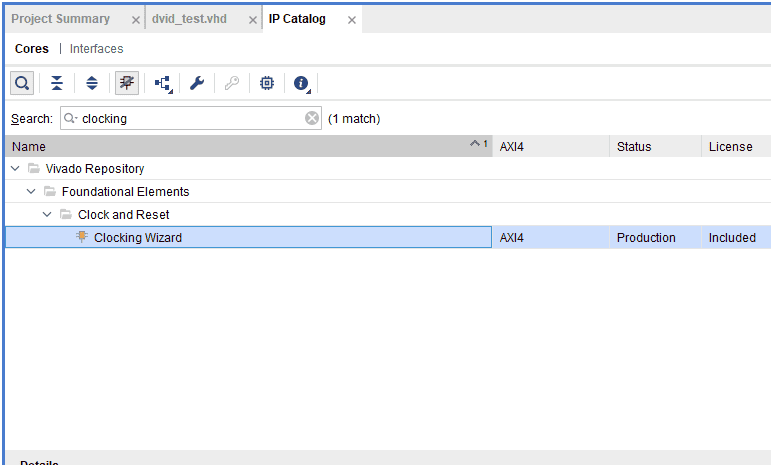
Add Clocking Wizard by clicking on IP catalog in Project Manager, type ‘clocking’ in search box and double-click ‘Clocking Wizard’ IP. It will open customisation window for ‘Clocking Wizard’.
Step 8:
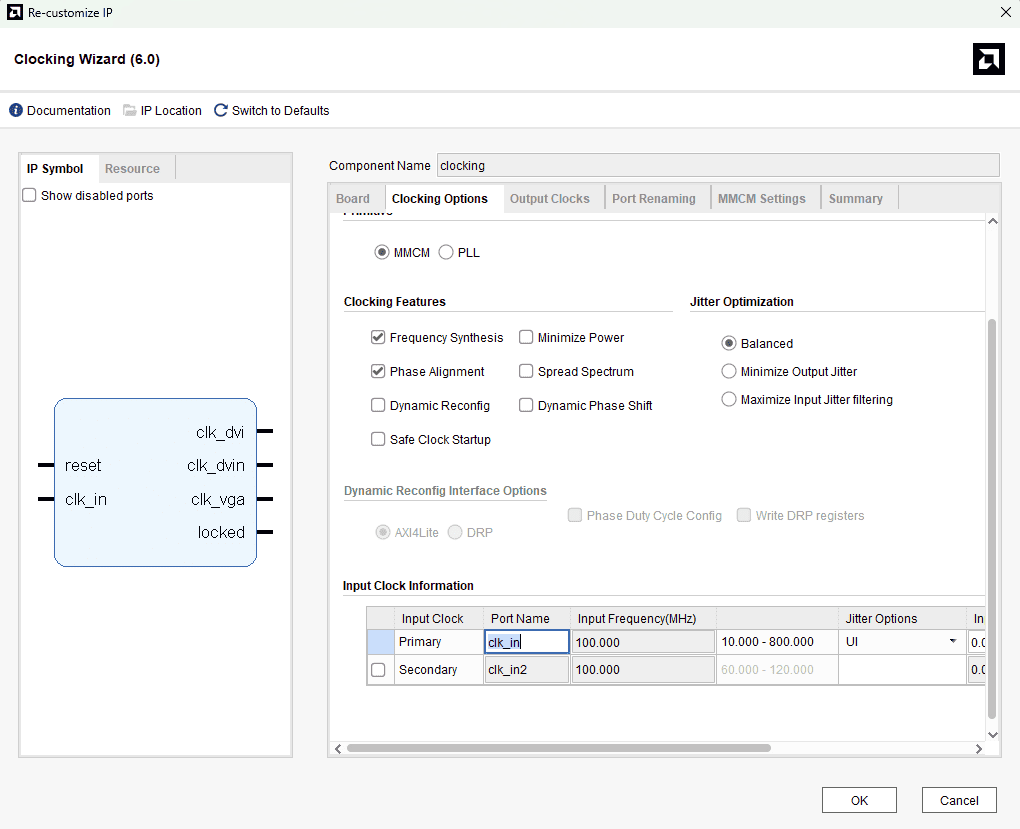
In ‘Clocking Options’ tab, rename primary clock port name as ‘clk_in’.
In ‘Output Clocks’ tab, enable 3 output clocks and provide their name, frequency as well as phase as shown in the image below. Click ‘OK’.
Step 9:
In Sources tab of Vivado, Left-Click ‘Constraints’ and click ‘Add Sources’.
Step 10:
Click ‘Create File’ and enter ‘styx_hdmi’ or any convenient name as File name. Click ‘OK’ and ‘Finish’.
Copy the following constraints to the newly created constraints file:
set_property -dict { PACKAGE_PIN "W16" IOSTANDARD TMDS_33 } [get_ports {clk_p}] ;
set_property -dict { PACKAGE_PIN "Y16" IOSTANDARD TMDS_33 } [get_ports {clk_n}] ;
set_property -dict { PACKAGE_PIN "W15" IOSTANDARD TMDS_33 } [get_ports {data_p[0]}] ;
set_property -dict { PACKAGE_PIN "W17" IOSTANDARD TMDS_33 } [get_ports {data_p[1]}] ;
set_property -dict { PACKAGE_PIN "R20" IOSTANDARD TMDS_33 } [get_ports {data_p[2]}] ;
set_property -dict { PACKAGE_PIN "Y15" IOSTANDARD TMDS_33 } [get_ports {data_n[0]}] ;
set_property -dict { PACKAGE_PIN "W18" IOSTANDARD TMDS_33 } [get_ports {data_n[1]}] ;
set_property -dict { PACKAGE_PIN "R21" IOSTANDARD TMDS_33 } [get_ports {data_n[2]}] ;
set_property IOSTANDARD LVCMOS33 [get_ports {clk_in}] ;
set_property PACKAGE_PIN Y6 [get_ports {clk_in}];
Step 11:
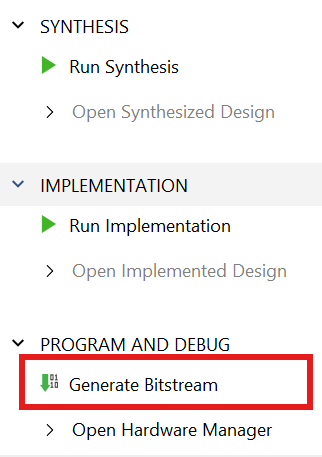
In Project Manager tab, Click ‘Run Synthesis’. If Synthesis is successful, Click ‘Run Implementation’ and finally on successful implementation select ‘Generate Bitstream’.
 Step 12:
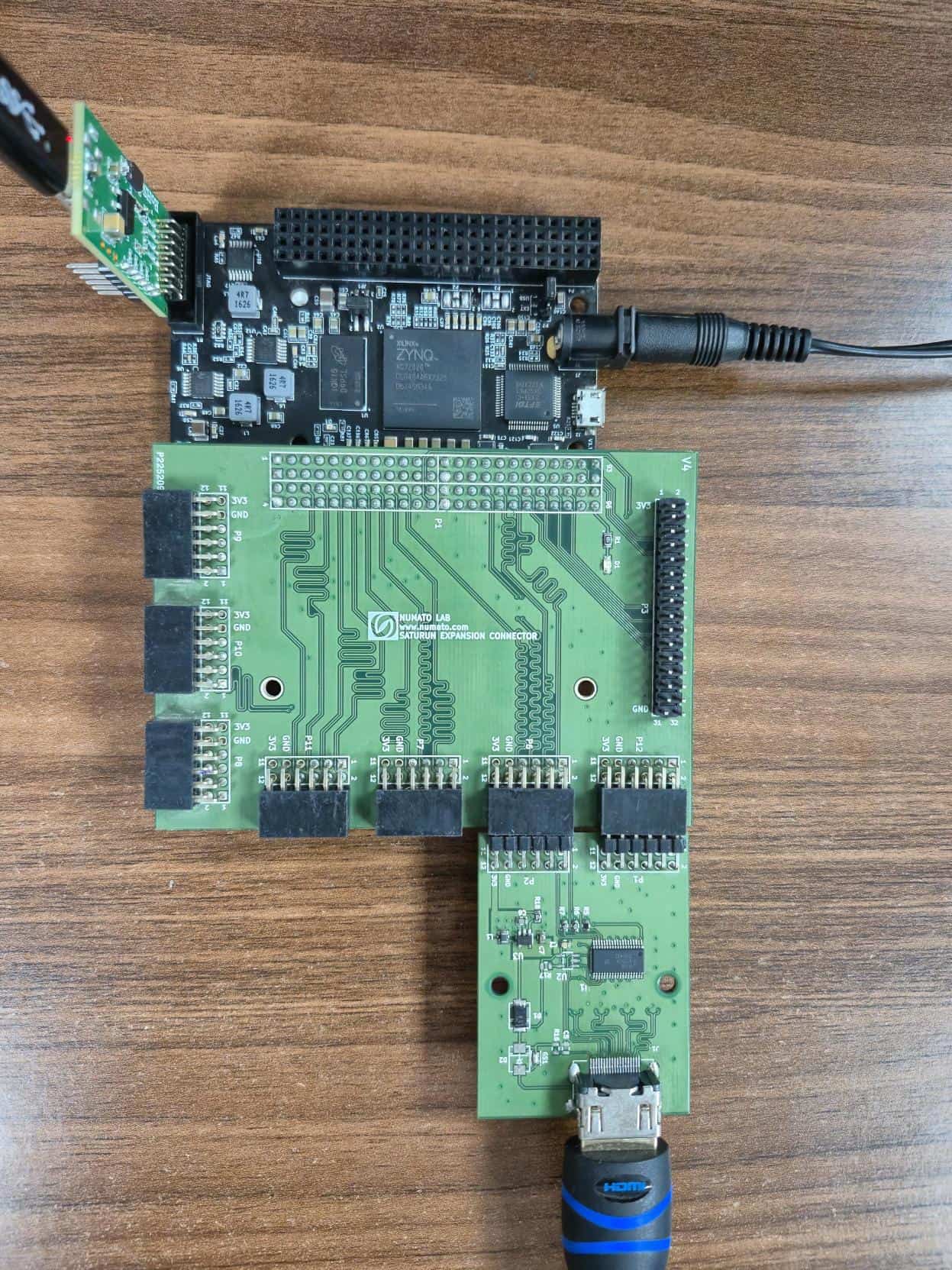
Set up the hardware for testing the design. For this, connect Saturn IO Breakout Module to ‘Header P5’ of Styx. Connect ‘Header P1 & P2’ of HDMI Module to ‘Header P12 & P6’ of Saturn IO Breakout module respectively. HDMI cable between HDMI Expansion module and the monitor. Finally, connect JTAG cable and power supply for Styx.