Introduction
PetaLinux is a development environment provided by AMD for creating embedded Linux systems targeted for their FPGA devices. It offers a streamlined workflow for building custom Linux distributions tailored to the specific requirements of embedded applications running on AMD FPGAs. It offers the developer the flexibility, scalability, and robustness for a wide range of embedded applications. It simplifies the process of integrating custom hardware IP cores, drivers, and user applications into a unified Linux-based platform. This article will help you to create PetaLinux project and run it on TityraCore Z7 SODIMM FPGA. So, let’s jump straight into it.
Structure to run the PetaLinux
- Section 1: Creating the Zynq7 processor based design on TityraCore Z7
- Section 2: Creating the PetaLinux project
- Section 3: Adding the Devicetree
- Section 4: Building the project and Running PetaLinux on TityraCore Z7
Prerequisites:
For following this article, you would require:
- Hardware:
- TityraCore Z7 SODIMM FPGA
- TityraCore Z7 carrier board.
- AMD Platform Cable JTAG debugger
- Ethernet Cable
- USB type C cable
- Software:
- AMD Vivado 2025.1 installed on either Windows or Linux system
- Linux system( Ubuntu 20.04.6 LTS)
- PetaLinux 2025.1
Section 1: Creating the Zynq7 processor based design on TityraCore Z7
Step 1:
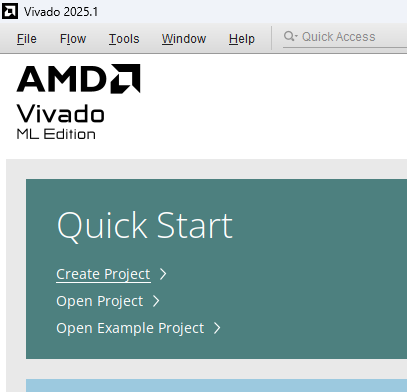
Start Vivado Design Suite, and select “Create Project” from Quick Start section. The project wizard will pop up. Press next to proceed with creating the project.
Step 2:
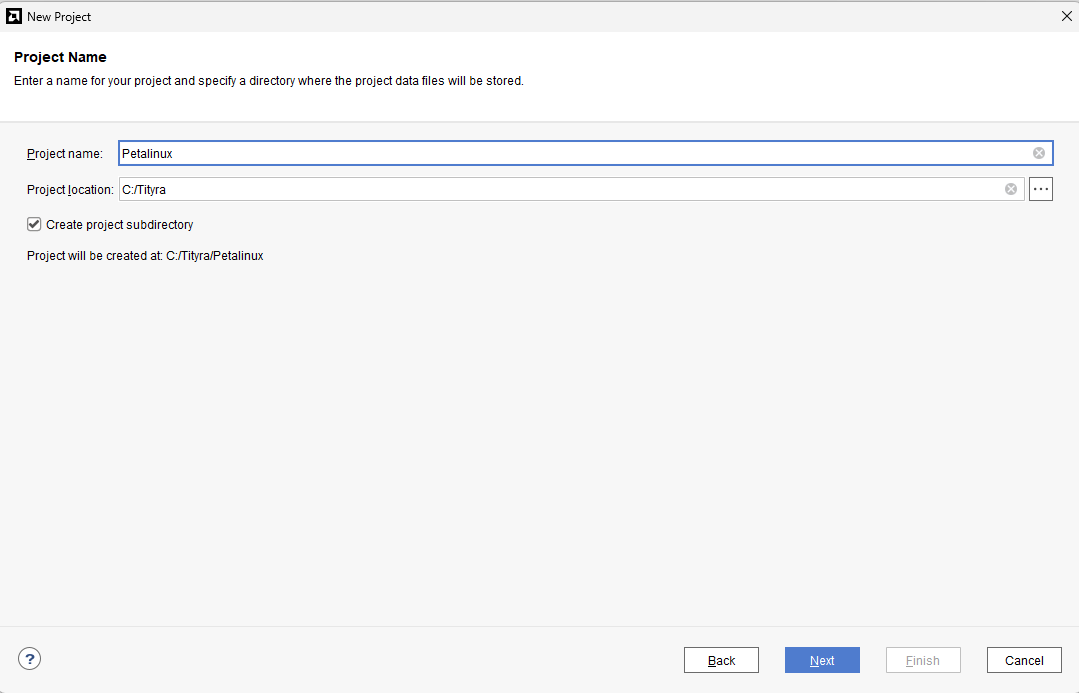
Type in a project name and save it in a convenient location. For this example “petalinux” is used as project name, but feel free to use any name. Select the check box below to keep all project files in a single folder. The image below shows the settings for the example project. Click “Next” to continue.
Step 3:
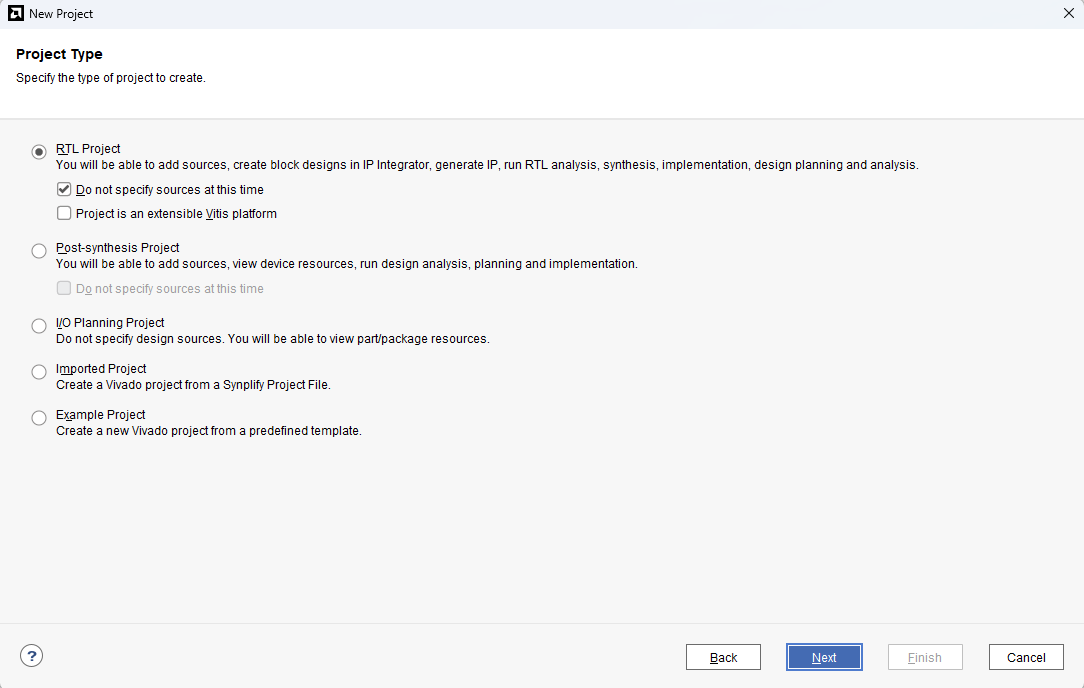
Choose “RTL Project” as project type and check the option “Do not specify sources at this time”.
Step 4:
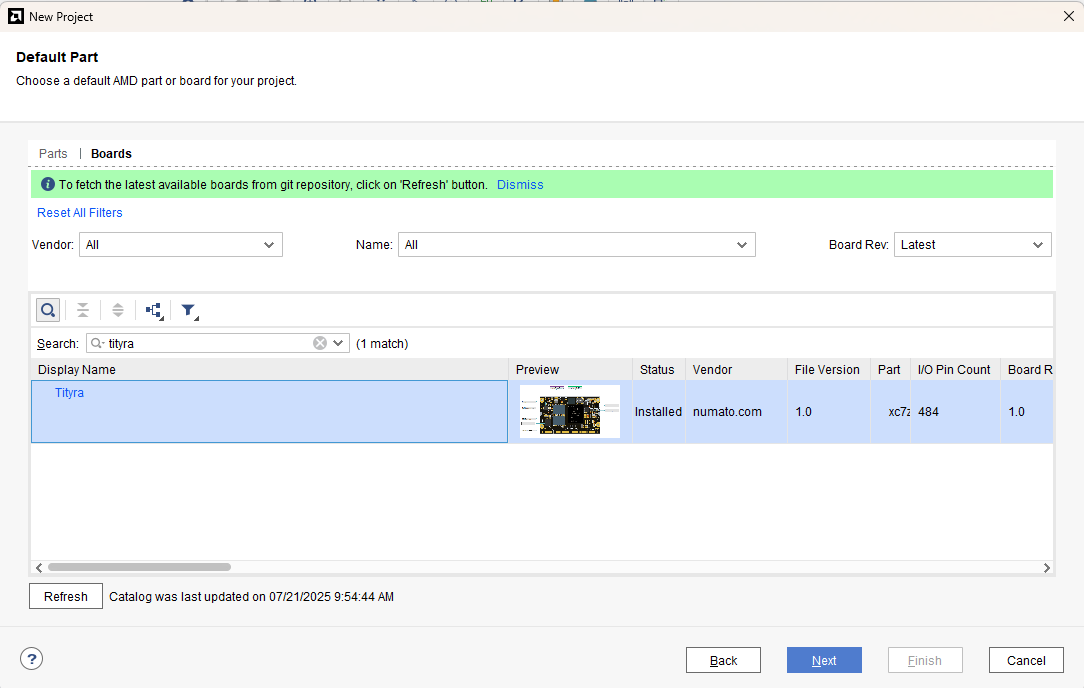
At the “Default Part” stage, switch to the “Boards” tab and set the vendor to numato.com. Select “Tityra” and click Next.If the Tityra board does not appear in the list, click “Refresh” to update the board catalog. Vivado will then download the latest board files, after which Tityra will become available for selection.
Step 5:
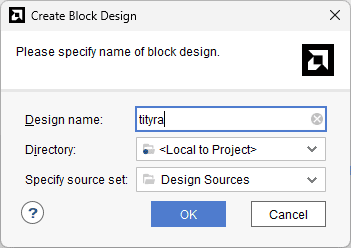
Under Flow Navigator, select “Create Block Design” in IP Integrator. Give an appropriate name to design. We will call it “tityra” for example.
Step 6:
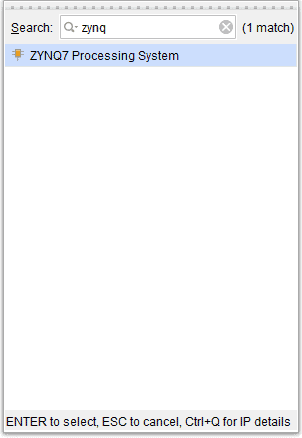
Go to Diagram window, right click and select “Add IP” from the popup menu. Search for ZYNQ7 Processing System. Add it to block design by double clicking.
Step 7:
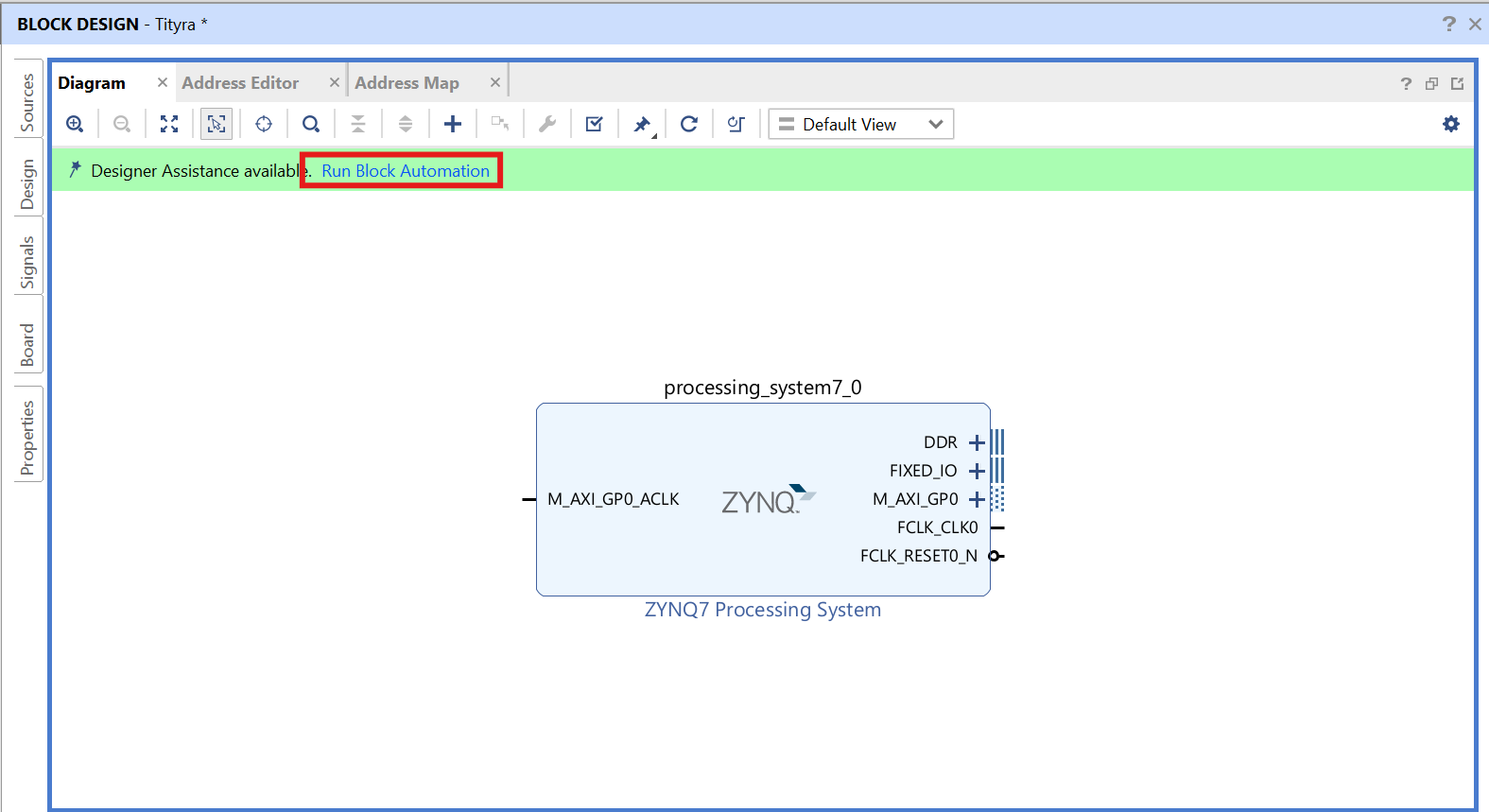
Click on “Run Block Automation” option on the green bar.
Step 8:
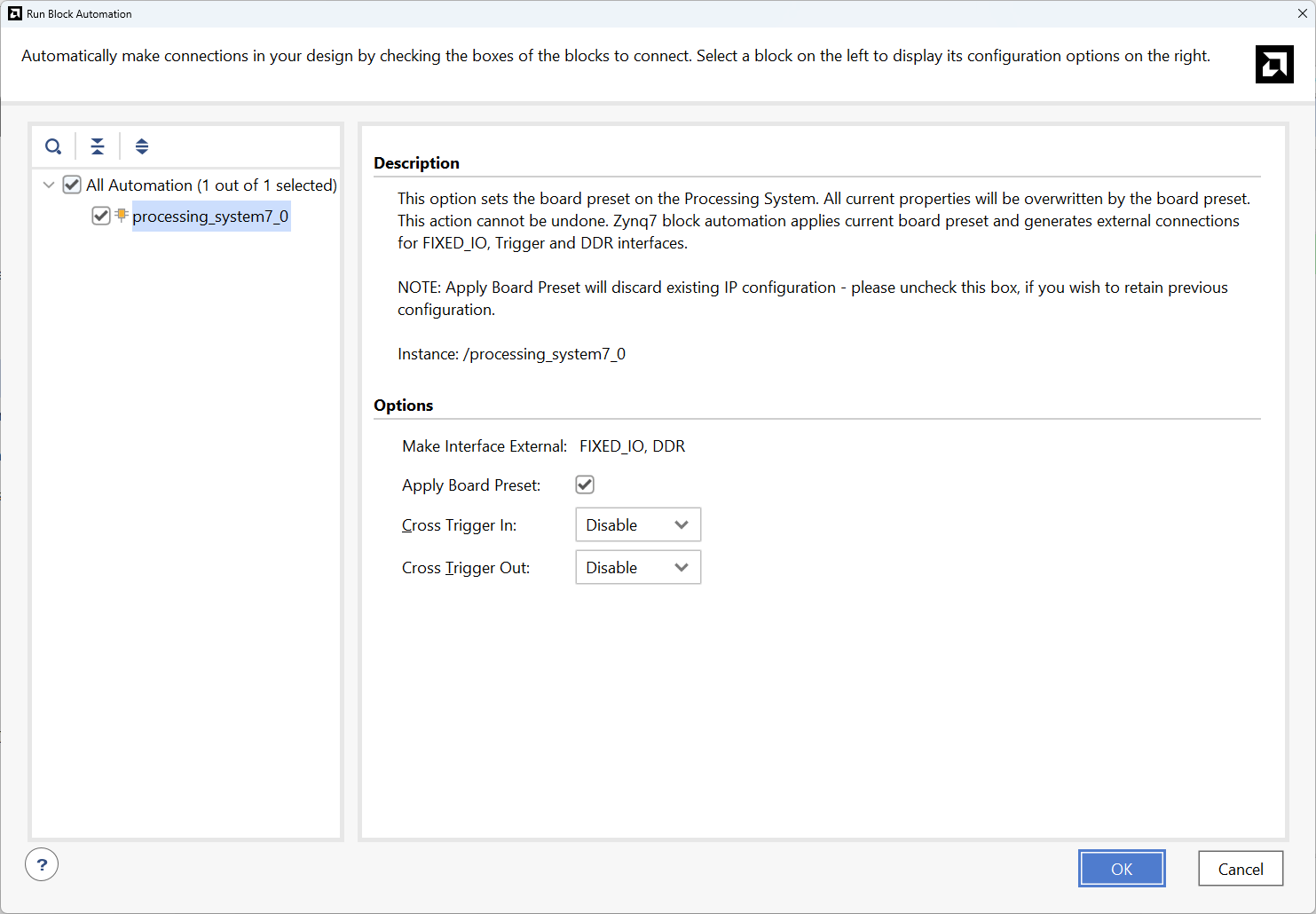
In the “Run Block Automation” window, select the options as in image below and click OK.
Step 9:
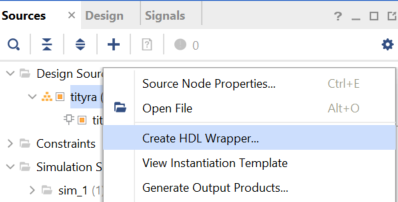
Go to “Sources” tab, right click on “tityra” design file and select “Create HDL Wrapper”. Click OK on the window that appears to finish generating wrapper.
Step 10:
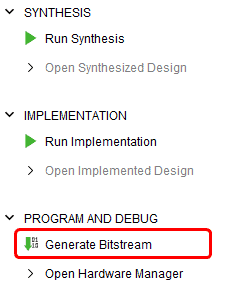
Click “Generate Bitstream” under PROGRAM AND DEBUG section and click “Yes” in any subsequent dialog window which comes up.
Step 11:
Once the bitstream is successfully generated, close any “Bitstream Generation Completed” dialog which comes up asking for what to do next , click OK.
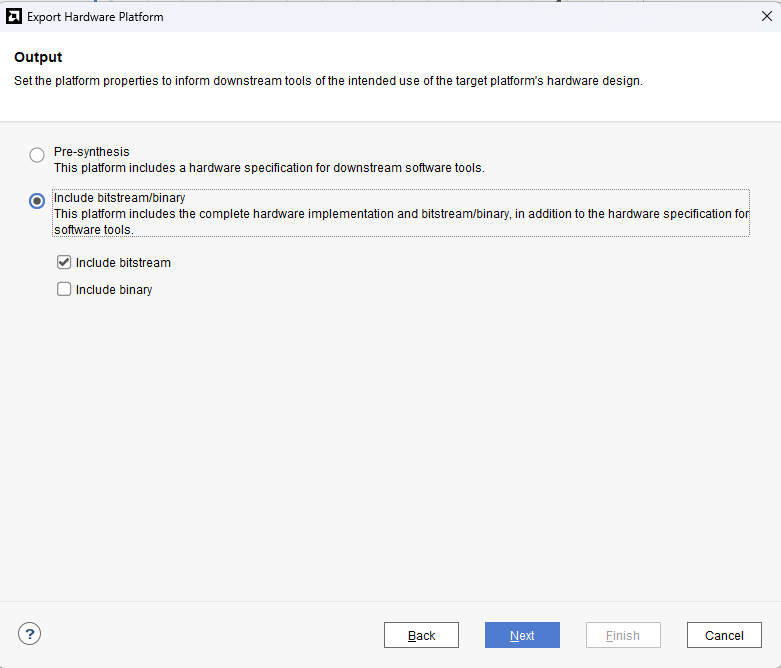
Go to File -> Export -> Export Hardware…
Check “Include bitstream”, keep “Export to:” default, click on Next and Finish.
Step 12:
Open terminal in the location of PetaLinux installation Directory and Set Up PetaLinux Working Environment.
source <path-to-installed-PetaLinux>/settings.sh
Step 13:
Create new project in a convenient location using zynq template. For this example, “tityra_peta” is used as project name, but feel free to use any name. Type the command given below.
petalinux-create -t project -n New_project/tityra_peta --template zynq
Change the working directory to newly created project location using the command:
cd New_Project/tityra_peta

Step 14:
Include the XSA file, which is generated in the Vivado Design Suite, to this location by specifying the appropriate path.
petalinux-config --get-hw-description=<path-to-xsa>/tityra_wrapper.xsa
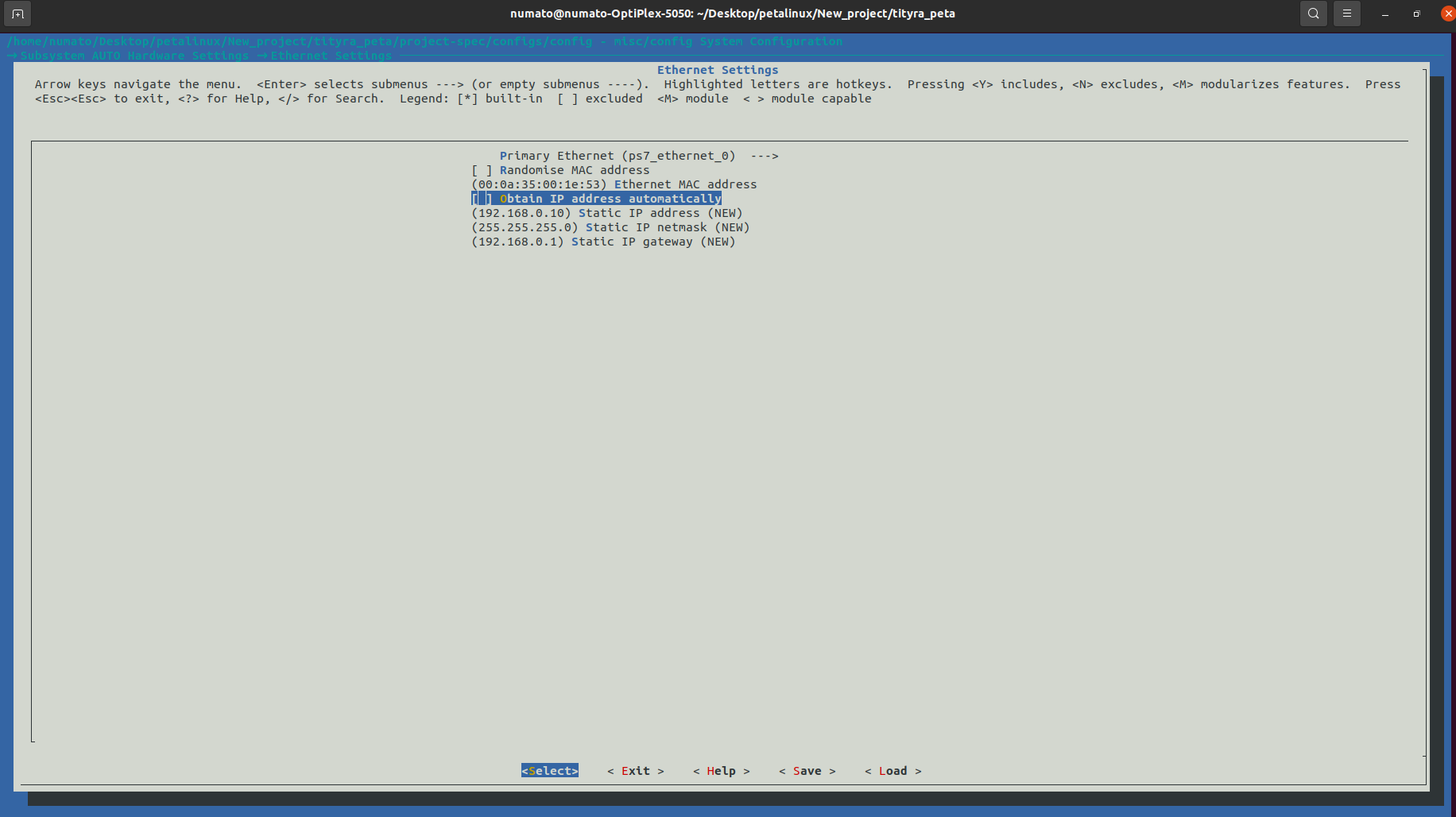
A misc/config system configuration menu will appear, go to Subsystem AUTO Hardware Settings –> Ethernet Settings –> unselect Obtain IP address automatically. Keep all other settings as default and Exit the configuration menu by selecting Exit–> Yes.
Step 15:
Execute the provided command to configure the root file system, and rootfs menu will appear.
petalinux-config -c rootfs
Enable the following packages:
- Filesystem packages –> admin –> sudo –> sudo
- Filesystem packages –> base –> i2c – tools –> i2c – tools
- Filesystem packages –> console –> network –> dropbear –> dropbear
- Filesystem packages –> console –> network –> ethtool –> ethtool
- Filesystem packages –> console –> utils –> grep –> grep
- Image Features –> auto – login
Disable the following packages:
- Image Features –> ssh-server-dropbbear
- Image Features –> ssh-server-openssh
Save and exit the configuration file.
Step 16:
Delete existing code and add the following lines to the devicetree file located in <path-to-project>/ project-spec/meta-user/recipes-bsp/device-tree/files/system-user.dtsi
/include/ "system-conf.dtsi"
&gem1 { // <-- THIS IS THE CORRECTION
  phy-handle = <&phy1>;
  ps7_ethernet_1_mdio: mdio {
    #address-cells = <1>;
    #size-cells = <0>;
    phy1: phy@0 {
      compatible = "micrel,ksz9031";
      device_type = "ethernet-phy";
      reg = <0>;
    };
  };
};

/ {
  usb_phy0:usb_phy@0 {
    compatible="usb-nop-xceiv";
    #phy-cells = <0>;
  };
};

&usb0 {
  dr_mode = "otg";
  usb-phy = <&usb_phy0>;
};

&i2c0 {
  status = "okay";
  clock-frequency = <400000>;
  #address-cells = <1>;
  #size-cells = <0>;
  eeprom: eeprom@51
  {
    compatible = "atmel,24c02";
    reg = <0x51>;
  };
};

&i2c1 {
  status = "okay";
  clock-frequency = <100000>;
  #address-cells = <1>;
  #size-cells = <0>;

  //  RTC
  rtc0:rtc-ti@68 {
    compatible = "ti,bq32000";
    reg = <0x68>;
  };
};
Step 17:
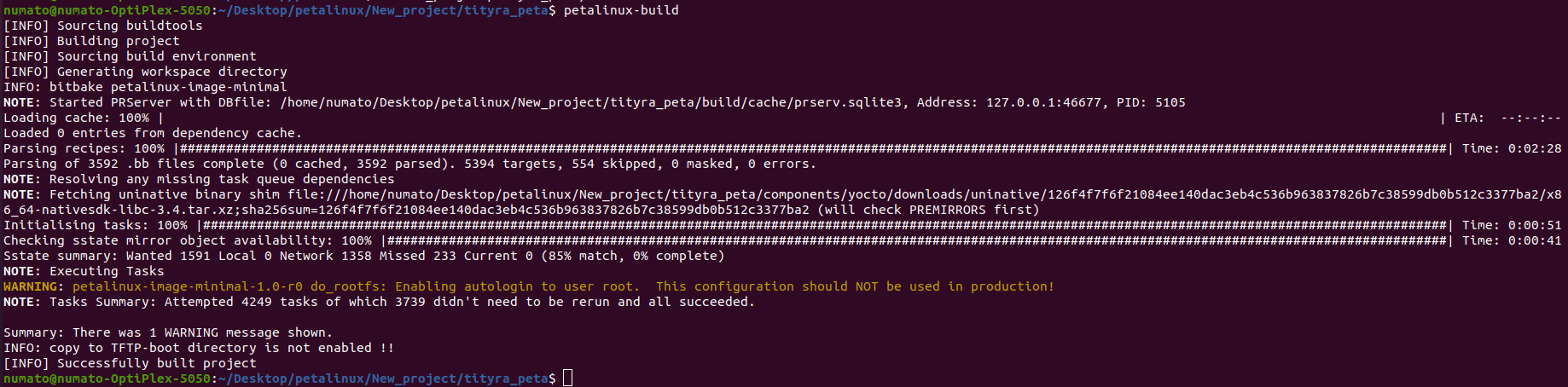
Now build the entire project using the command mentioned below. This will take a while.
petalinux-build
Step 19:
After building the project successfully, let’s powerup the board for programming. Make sure the board is in JTAG boot mode configuration. Open any serial terminal (Putty, TeraTerm..) for observing output and connect Ethernet cable to check ethernet connectivity. Use the following command for programming the board.
petalinux-boot --jtag --u-boot --fpga --kernel
Step 20:
If everthing went well, the board will start booting.
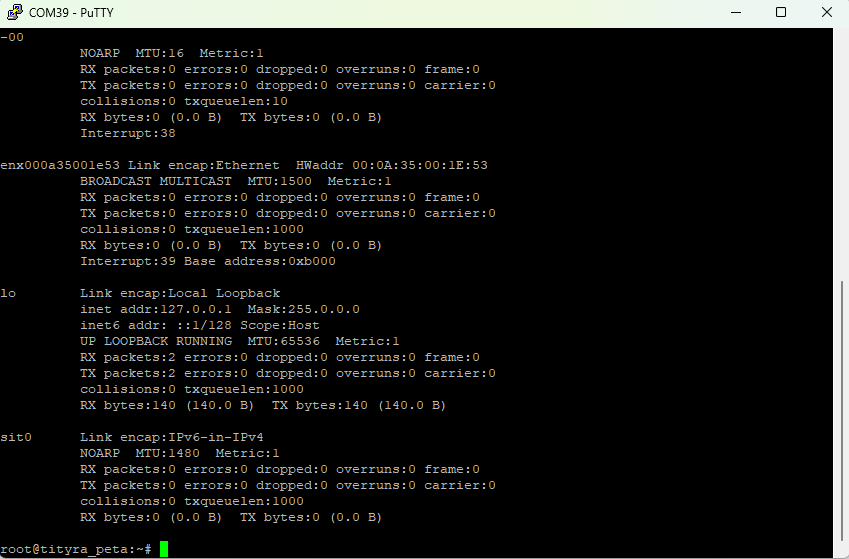
To check whether the ethernet connection is established, use the command:
ifconfig -a
You will get the output as shown below.
This approach allows us to test various functionalities such as OTG, MAC ID of EEPROM, RTC, and more.