Introduction
Creating a PetaLinux project is a fundamental step in bringing up any Zynq MPSoC or Zynq-7000 design, as it provides the complete software environment needed to run Linux-based applications on the Processing System (PS). PetaLinux simplifies the process of building a customized embedded Linux distribution tailored for your hardware platform. One of the most common and practical methods of deploying this system is by booting directly from an SD card, which enables flexibility, easy updates, and portability. In this article, we will walk through the process of creating a PetaLinux project and demonstrate how to boot it from an SD card, ensuring a solid foundation for further development.
Prerequisites
To follow this article, you would need the following:
- Hardware:
- EagleCore ZU-Plus MPSoC SOM.
- EagleCore ZUC02 Carrier.
- AMD Platform Cable II JTAG debugger.
- USB Type C Cable.
- 12V DC Power Supply.
- Software:
- AMD Vivado Design Suite 2024.1
- Petalinux 2024.1
Let’s get started
The following steps will walk you through the process of creating a new project with Vivado and building a hardware platform with Zynq processing system using IP integrator. This article is written for Numato Lab’s Eaglecore ZU-plus MPSoC, but can be adapted to any other Zynq based platform with minor changes. Screenshots are added wherever possible to make the process easier to the reader.
Step 1:
Download and install Vivado Board Support Package files for EagleCore ZU-Plus MPSoC SOM from here. Follow the readme in the link on how to install Vivado Board Support Package files for Numato Lab’s boards.
Step 2:
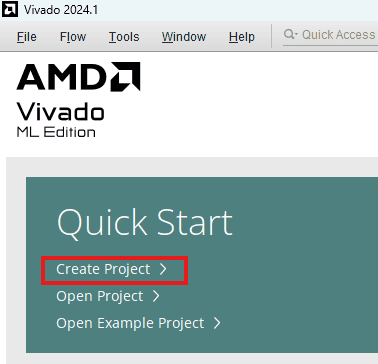
Start Vivado Design Suite, and select “Create Project” from Quick Start section. The project wizard will pop up. Press “next” to proceed with creating the project.
Step 3:
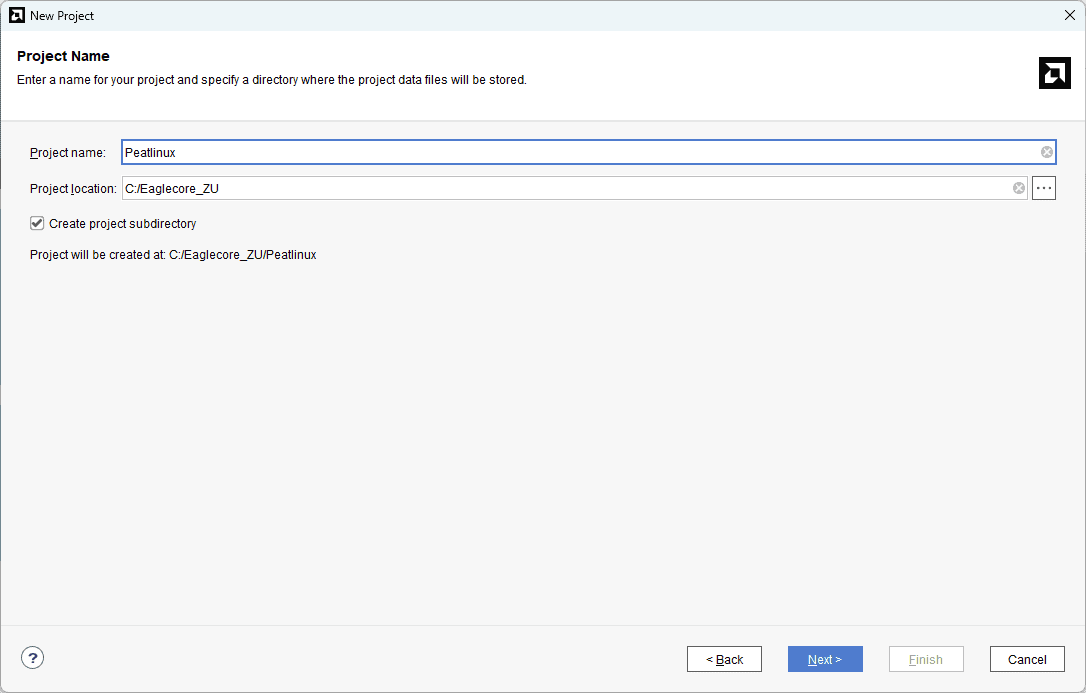
Type in a project name and save it at a convenient location. For this example “petalinux” is used as project name, but feel free to use any name. Select the check box below to keep all project files in a single folder. The image below shows the settings for the example project. Click “Next” to continue.
Step 4:
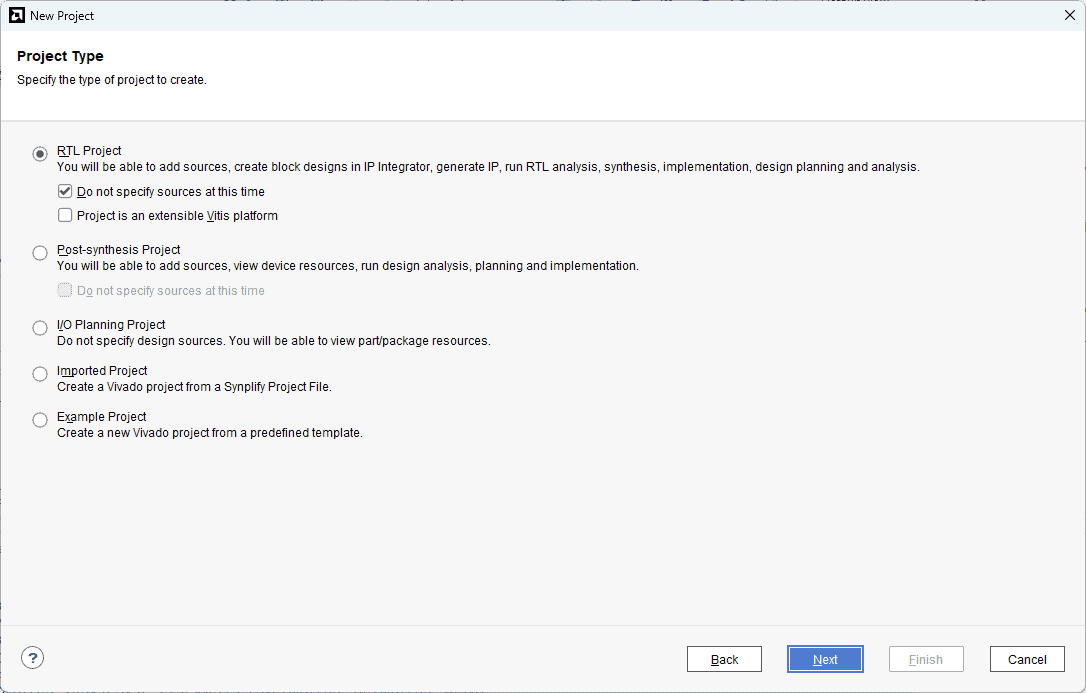
Choose “RTL Project” as project type and check the option “Do not specify sources at this time”.
Step 5:
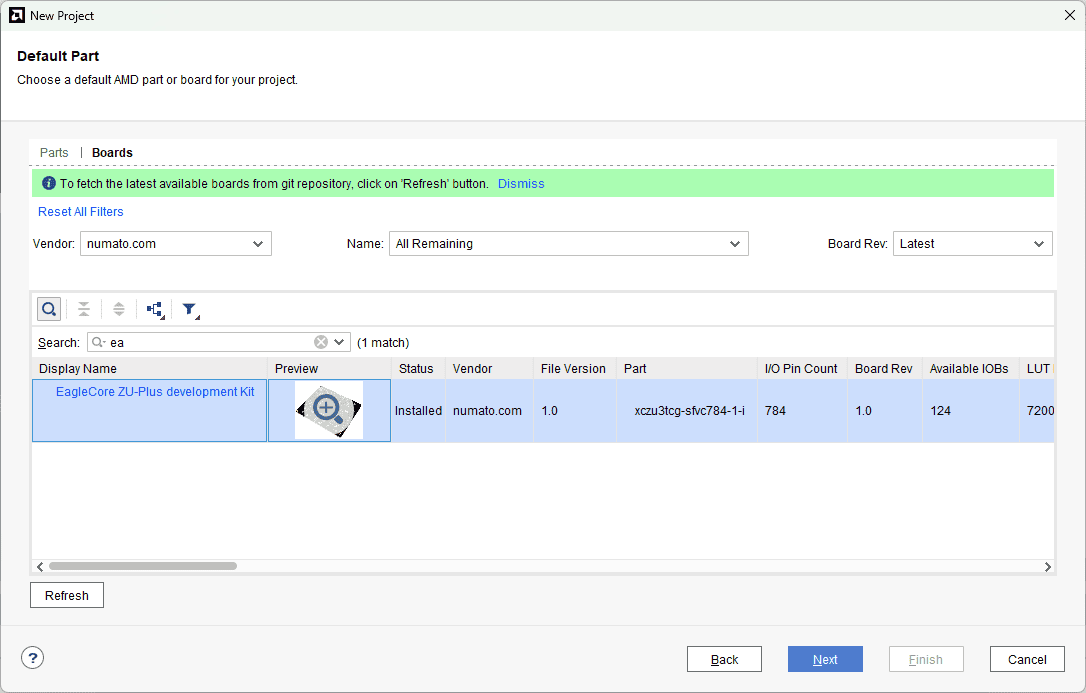
At the “Default Part” step, select “Boards” and choose Vendor as “numato.com”. Select “Eaglecore ZU-Plus development kit” and click “Next”. If Eaglecore ZU-Plus development kit is not displayed in the boards list, you will need to install Eaglecore ZU-Plus development kit board support files correctly.
Step 6:
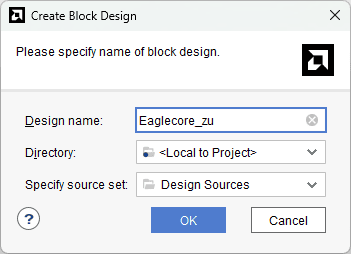
Under Flow Navigator, select “Create Block Design” in IP Integrator. Give an appropriate name to design. We will call it “Eaglecore_zu” for example.
Step 7:
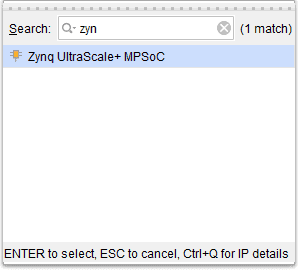
Go to Diagram window, right click and select “Add IP” from the popup menu. Search for Zynq UltraScale+ MPSoC. Add it to block design by double clicking.
Step 8:
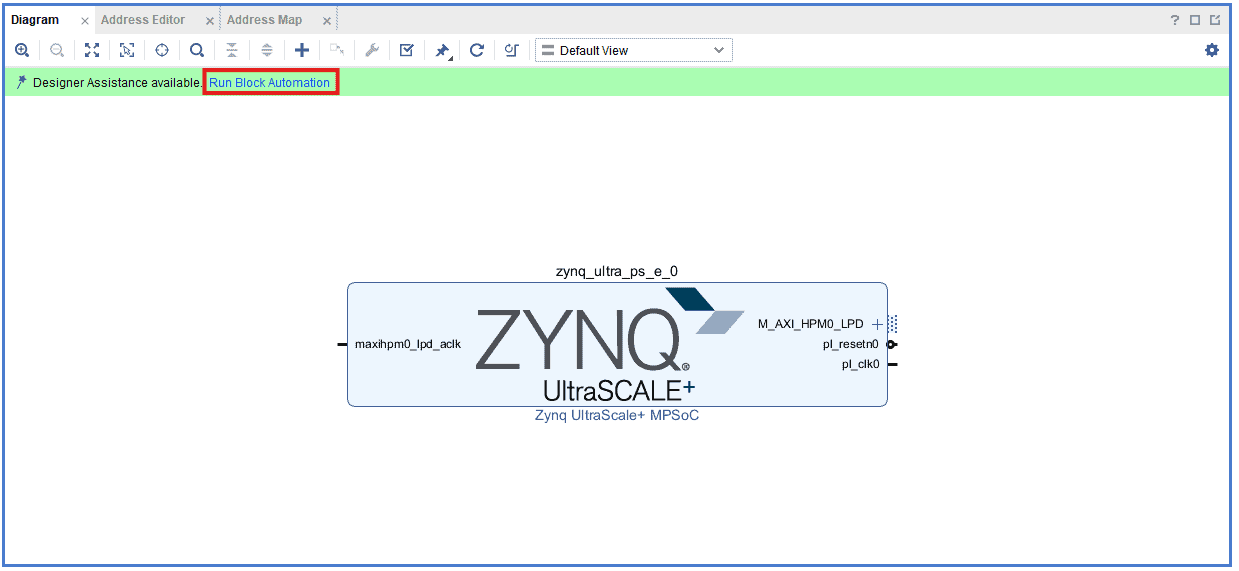
Click on “Run Block Automation” option on the green bar.
Step 9:
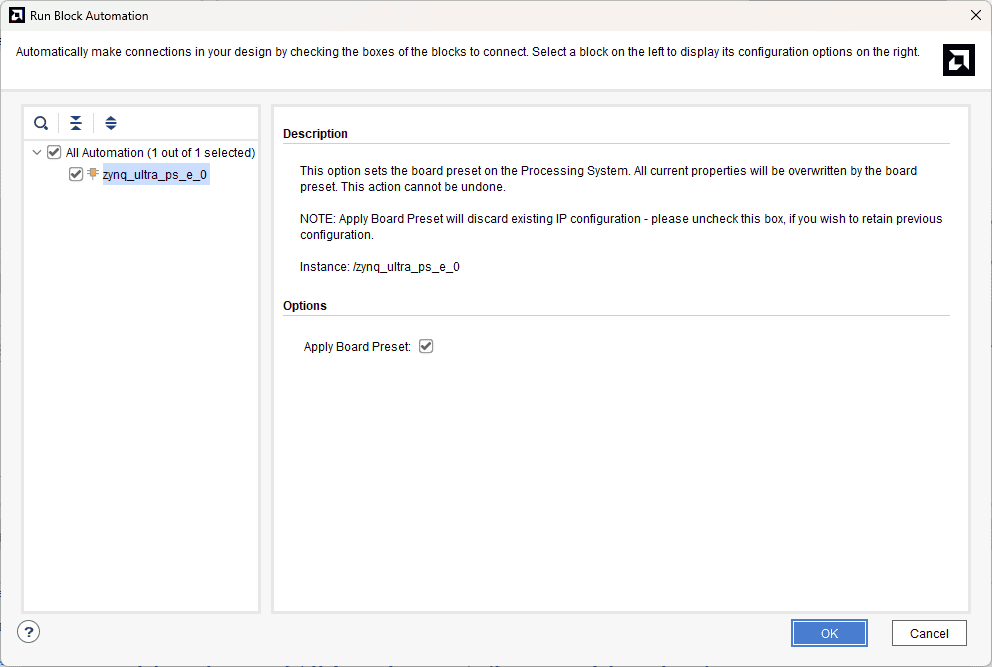
In the “Run Block Automation” window, select the options as in image below and click OK.
After running Block Automation, verify and complete the connections as shown in the image below.
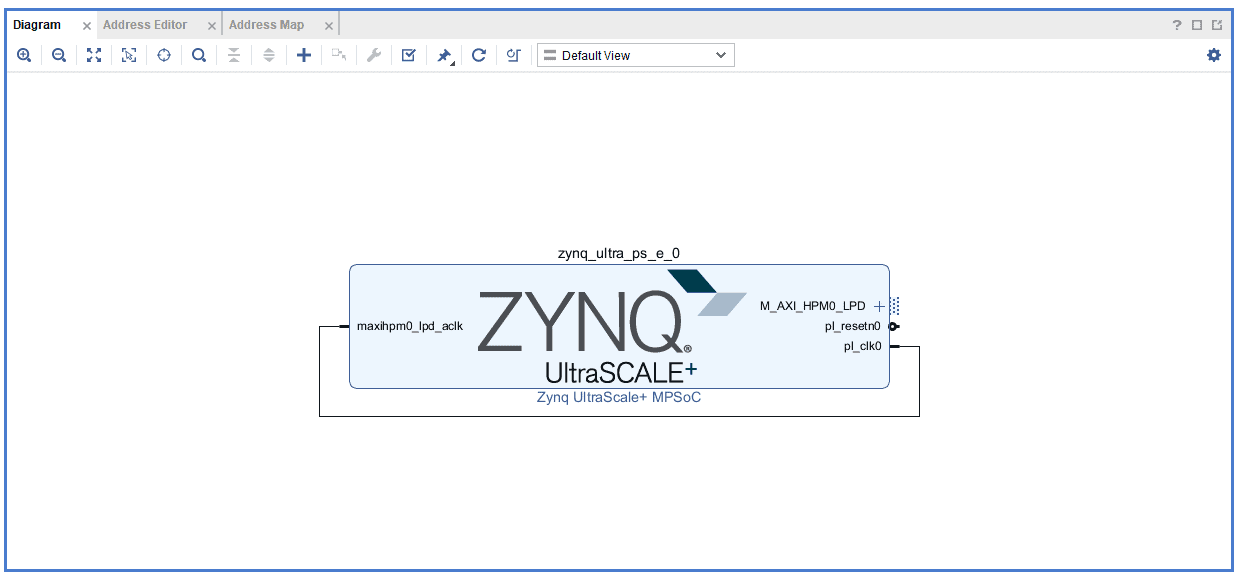
Step 10:
Go to “Sources” tab, right click on “Eaglecore_zu” design file and select “Create HDL Wrapper”. Click OK on the window that appears to finish generating wrapper.
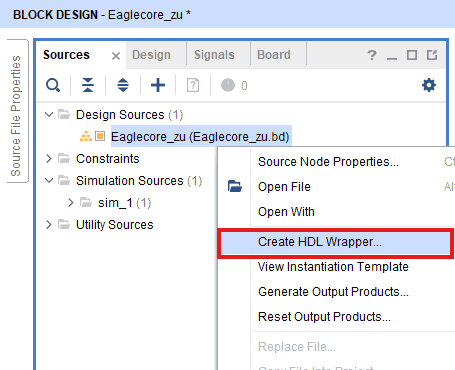
Step 11:
Click “Generate Bitstream” under PROGRAM AND DEBUG section and click “Yes” in any subsequent dialog window which comes up.
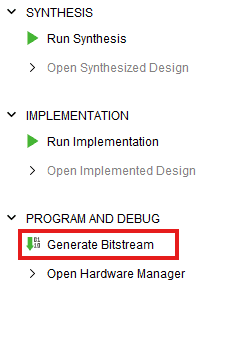
Step 12:
Once the bitstream is successfully generated, close any “Bitstream Generation Completed” dialog which comes up asking for what to do next.
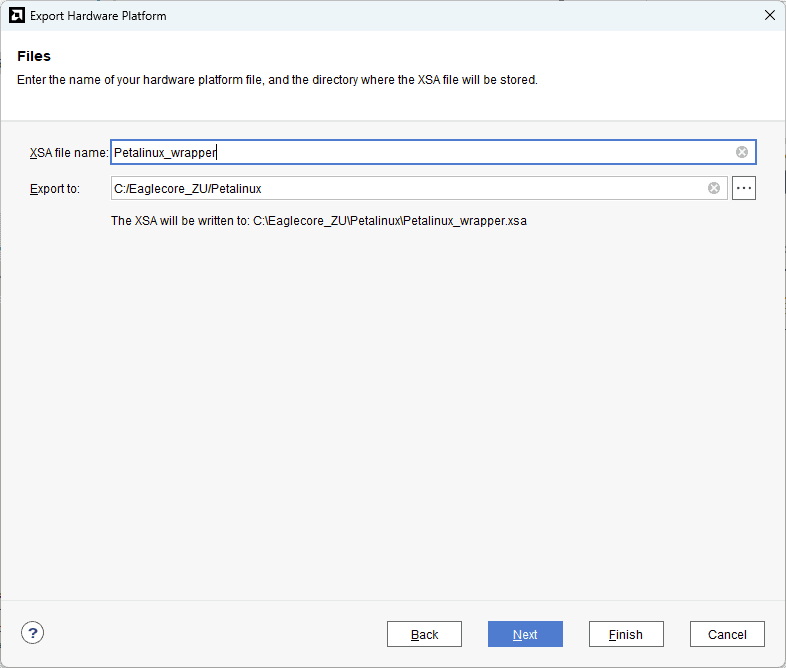
Go to File -> Export -> Export Hardware…
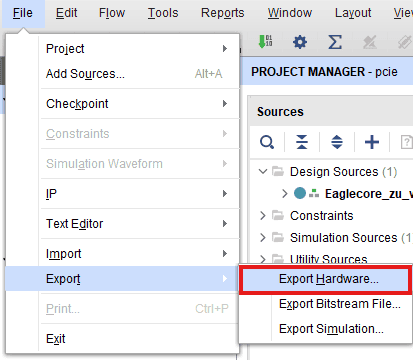
Check “Include bitstream”, keep “Export to:” default, and click OK.
Step 13:
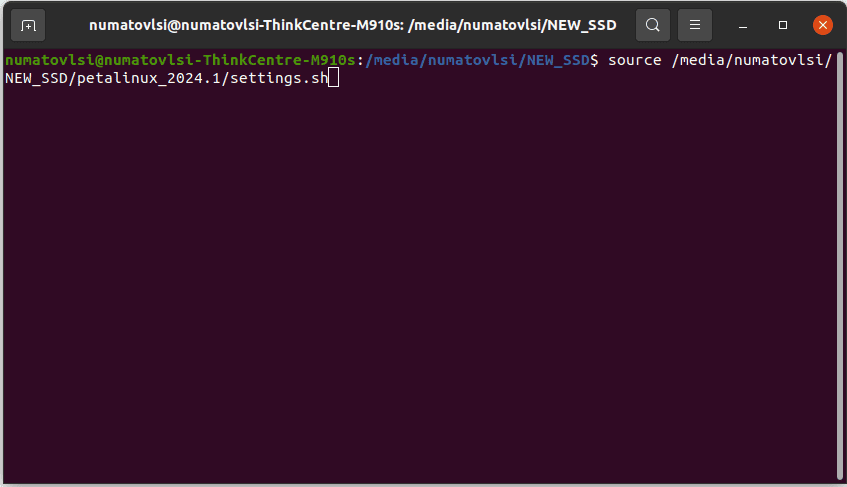
Open terminal in the location of PetaLinux installation Directory and Set Up PetaLinux Working Environment.
source \<path-to-installed-PetaLinux\>/settings.sh
Step 14:
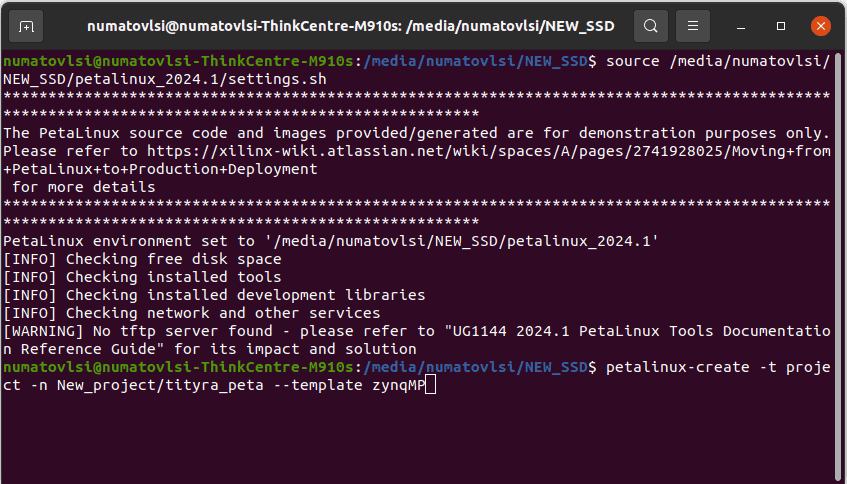
Create new project in a convenient location using zynqMP template. For this example, “ZU3TEG_peta” is used as project name, but feel free to use any name. Type the command given below.
petalinux-create -t project -n New_Project/ZU3TEG_peta --template zynqMP
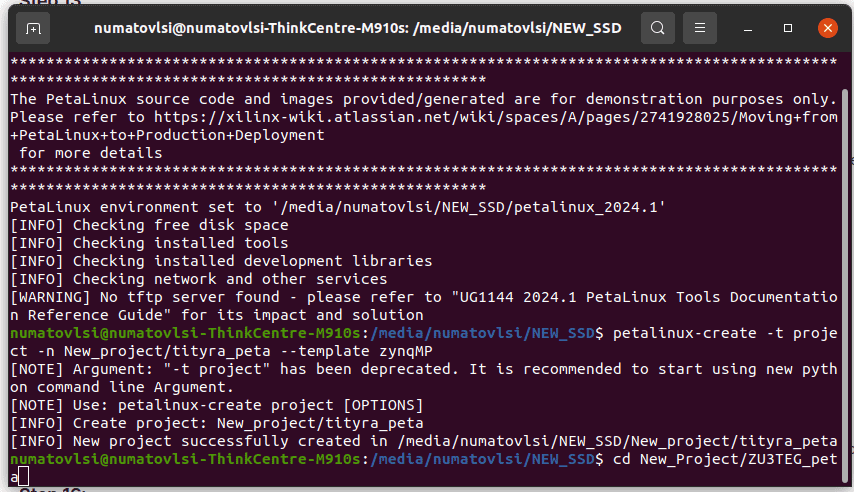
Change the working directory to newly created project location using the command:
cd New_Project/ZU3TEG_peta
Step 15:
Include the XSA file, which is generated in the Vivado Design Suite, to this location by specifying the appropriate path.
petalinux-config --get-hw-description=\<path-to-xsa\>/Petalinux_wrapper.xsa
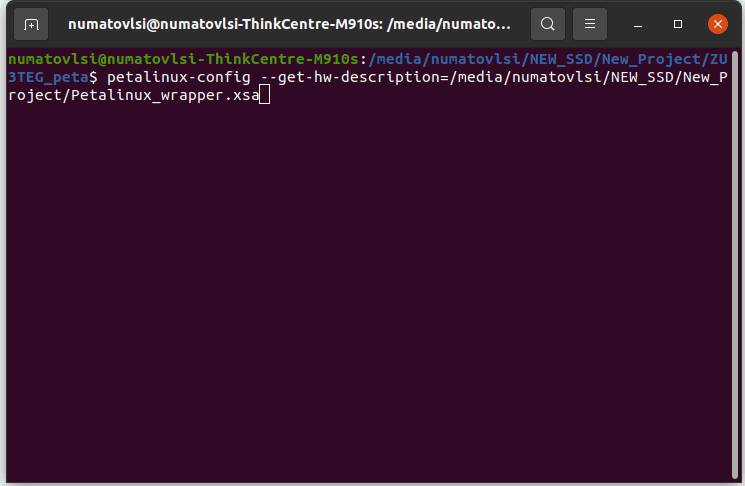
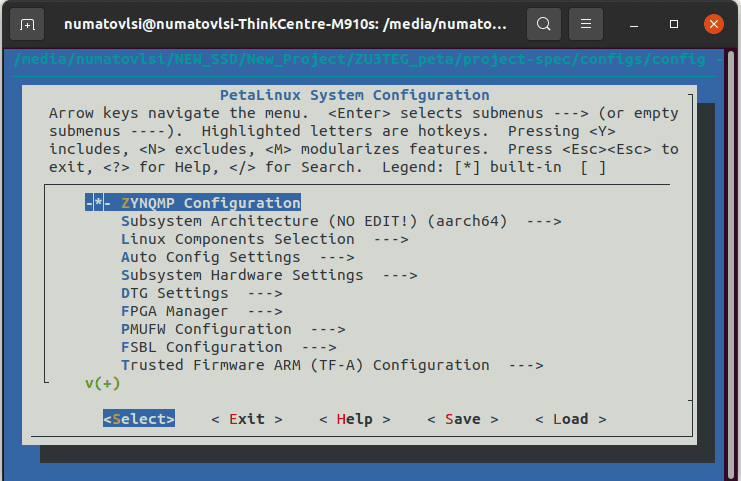
A misc/config system configuration menu will appear, Keep all the settings as default and Exit the configuration menu by selecting Exit–> Yes.
Step 16:
Execute the provided command to configure the root file system, and rootfs menu will appear.
petalinux-config -c rootfs
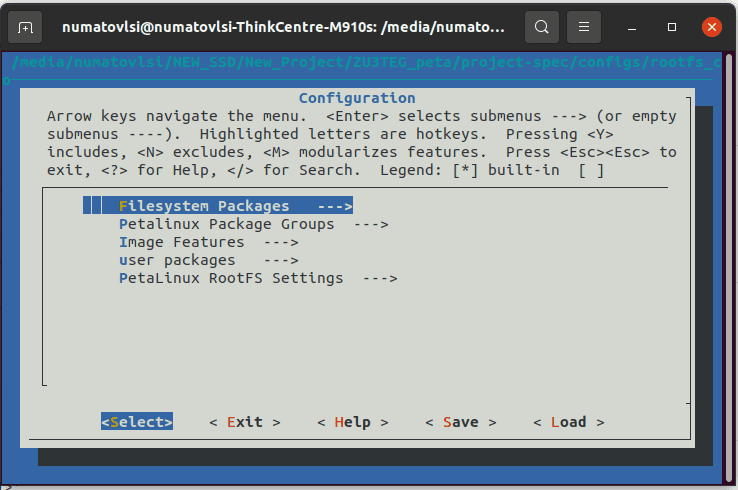
Enable the following packages:
* Filesystem packages –\> admin –\> sudo –\> sudo
* Filesystem packages –\> base –\> i2c – tools –\> i2c – tools
* Filesystem packages –\> console –\> network –\> ethtool –\> ethtool
* Filesystem packages –\> console –\> utils –\> grep –\> grep
* Image Features –\> auto – login
Save and exit the configuration file.
Step 17:
Add the following lines to the devicetree file located in <path-to-project>/ project-spec/meta-user/recipes-bsp/device-tree/files/system-user.dtsi
&can0{
    #address-cells = <1>;
    #size-cells = <0>;
    status = "okay";
    canbus0:canbus0@0
    {
	compatible = "microchip,mcp2562fd";
	reg = <0>;
    };
};

&can1{
    #address-cells = <1>;
    #size-cells = <0>;
    status = "okay";
    canbus1:canbus1@0
    {
	compatible = "microchip,mcp2562fd";
	reg = <0>;
    };
};

&gem3 {
	status = "okay";
	phy-mode = "rgmii-id";
	phy-handle = <&phy0>;
	phy0: phy@3 {
		reg = <0x3>;
		ti,rx-internal-delay = <0x5>;
		ti,tx-internal-delay = <0x5>;
		ti,fifo-depth = <0x1>;
	};
};
&i2c0 {
	status = "okay";
	clock-frequency = <400000>;
	#address-cells = <1>;
        #size-cells = <0>;
        eeprom: eeprom@51
            {
               compatible = "atmel,24c02";
               reg = <0x51>;
            };
};
&i2c1 {
    status = "okay";
    clock-frequency = <100000>;
    #address-cells = <1>;
    #size-cells = <0>;
    //  RTC
    rtc0:rtc-ti@68 {
             compatible = "ti,bq32000";
             reg = <0x68>;
    };
};
Step 18:
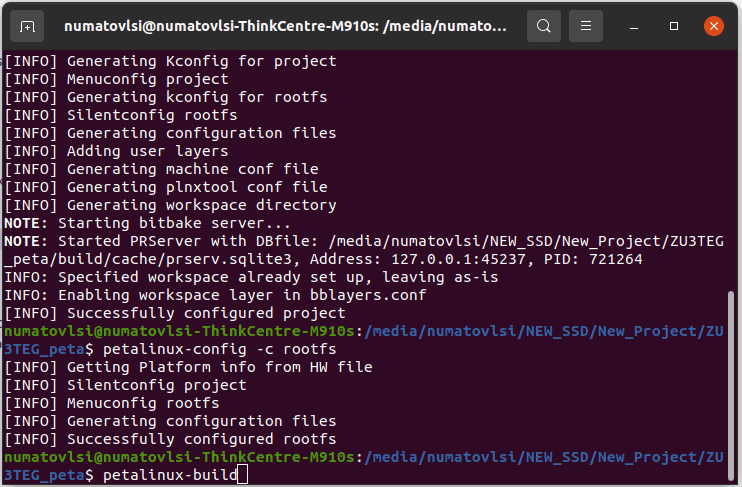
Now build the entire project using the command mentioned below. This will take a while.
petalinux-build
Step 19:
After building the project, Package the files to generate the boot image and the final image, BOOT.BIN will be generated in the images/linux directory.
petalinux-package --boot --format BIN --fsbl images/linux/zynq_fsbl.elf --fpga --u-boot images/linux/u-boot.elf
Step 20:
We need a properly partitioned SD card for booting PetaLinux. Steps to partition SD card will be provided in the article given here. Copy the below mentioned files in the location “images/linux” to specific partitions.
To BOOT partition (partition 1), copy the following files:
- BOOT.BIN
- image.ub
- boot.scr
To rootfs partition (partition 2), copy the untarred file of the following:
- rootfs.tar.gz
Step 21:
Insert the SD card into the SD Card slot of the Eaglecore_ZU and power it up. Ensure that the boot configuration of the board is set to SD card booting. Meanwhile, open any serial terminal (TeraTerm, putty ..etc) with the baudrate 115200. Then, Observe the petalinux Booting process.